For me, Google TV is an ideal smart TV platform because it combines streaming services, Google Watchlist, and Android app support into a single interface. But that doesn’t mean it’s perfect. Once you spend enough time with it, certain quirks and limitations start to become obvious.
Recently, I spent some time customizing and optimizing the Google TV experience to make it cleaner, faster, and less distracting. It involved everything from replacing the default launcher to removing bloatware and tweaking hidden developer settings. Yes, it took a bit of effort, and it was well worth it.

If your TV has Bluetooth, you need to install this free app
This app makes the TV experience so much smoother
Ditch the default launcher
Nobody likes seeing ads on the home screen
The home screen is something that you see every time you turn on your TV or jump between apps, and honestly, Google TV’s default experience is anything but useful. You see giant banners everywhere, rows of sponsored content, and those annoying trailers that autoplay any time you accidentally hover over them. Yes, Google TV does offer an apps-only mode, but it’s not without its downsides.
A much better option is to simply replace the default experience with Projectivy Launcher. It gives your TV the clean, ad-free home screen it should’ve had from the start. It strips away all the recommendations and banners, leaving you with important sections like Inputs, Apps, and Settings. What I like the most is how customizable it is. You can move sections around, rearrange apps, resize icons, and basically shape the home screen based on how you actually use your TV.
Besides customization, Projectivy Launcher lets you sideload apps directly. This means you don’t need to download APK files on your phone and transfer them to your TV. Honestly, Projectivy Launcher is one of the best free upgrades your Google TV can have.

- OS
-
Android TV, Google TV
- Pricing model
-
Free, Pro version available
Get rid of bloatware
No point in keeping apps you won’t open
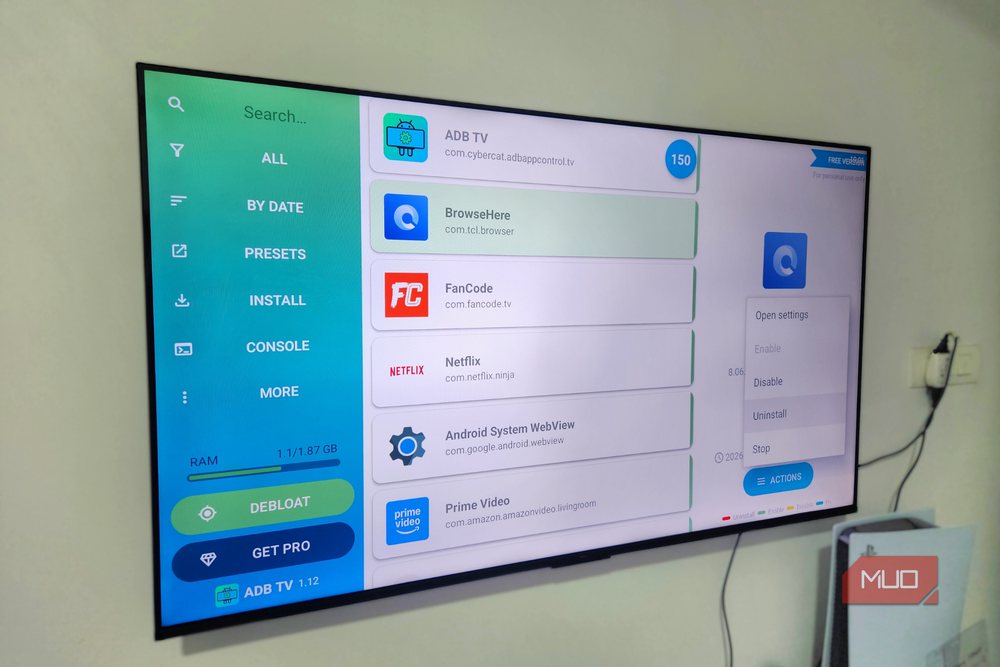
Bloatware isn’t just an Android phone problem – Google TV suffers from it too. To be fair, it’s not entirely Google’s doing. Most TV manufacturers also love bundling their own apps and services, so by the time you finish setting up your TV, you already have apps you’ll probably never open. That becomes an even bigger issue on smart TVs, since they have little storage to begin with.
What I find annoying is that you can’t remove some of these pre-installed apps the usual way. Still, it’s possible to get rid of bloatware from Google TV with ADB. For this, you need to unlock the developer options menu on your Google TV and then use an app like ADB TV. Of course, there’s a bit of caution involved here. Some system apps are actually important, so you need to stay away from them.

- OS
-
Android TV OS
- Price model
-
Free, Pro version available
Set up a custom DNS
The best networking trick everyone ignores

By default, most of your devices, including your Google TV, use the DNS servers provided by your ISP. And while they get the job done, they’re often not the fastest, most reliable, or the most privacy-friendly option. Google already offers a free DNS that’s much faster and reliable. You can head to Settings > Network & Internet > IP Settings > Static to set it up.
The real fun, though, starts once you move beyond Google DNS. There are several other providers that can help you with other things besides speed. For instance, with AdGuard or NextDNS, you can block ads everywhere on your smart TV. While this doesn’t block ads inside streaming apps like YouTube or Netflix, it does clean up ads and telemetry requests elsewhere throughout the system.
Smart DNS is another good option because it lets you unlock content that’s not available in your country. Setting it up does take slightly longer since you need to create an account and pay a subscription fee, but it’s still incredibly easy and better than using a VPN.
Turn off animations
Make your TV faster

Google TV loves animations. Every menu slide, app transition, and scrolling effect is designed to make the interface feel smooth and modern. The problem is that on many TVs, especially mid-range or old models, those animations don’t feel smooth at all. They just make the entire system seem slower than it actually is. Thankfully, Google TV does let you speed up or turn off those animations entirely.
To get started, you first need to open the Developer Options menu. Then look for Window Animation Scale, Transition Animation Scale, and Animator Duration Scale. Set them all to 0.5x and the entire interface will feel twice as fast. You can even turn them off for maximum performance. It’s one of those small tweaks that makes a huge difference in daily use.
Even if you only use your Google TV for streaming, it’s still worth making these tweaks. They might take a few minutes, but will make your TV feel lighter, faster, and a lot more fun.
