There’s a setting in your BIOS that controls how fast your RAM runs. On almost every system, it defaults to a speed well below what your RAM supports, so the system can boot reliably on any hardware. Reaching the full speed means changing one setting that nobody flags for you during setup. Here’s what that default costs your CPU and how to change it.
The RAM settings you’re probably ignoring
Your kit has speed it isn’t using

RAM has a speed rating printed on the box and listed on the product page. A DDR5 kit might say 6000 MT/s. That kit isn’t running at 6000 right now. Motherboards boot to a baseline speed defined by an industry standard called JEDEC, which for DDR5 typically sits at 4800. DDR4 defaults are even lower, often 2133. The faster speed you paid for is stored in a profile called XMP (or EXPO on AMD systems), inactive until you enable it in the BIOS.

RAM also has timing values that control how fast it responds to requests from the CPU. Lower timings mean a faster response. The main one is CAS latency, sometimes written as CL. A kit rated CL36 at 6000 MT/s won’t perform the same as one rated CL40 at the same speed. Speed makes the bigger difference day to day, but a slow CL value can still drag things down noticeably.
Right now, your kit’s rated speed is sitting inactive, and your timings are running at whatever JEDEC considers safe for any system.
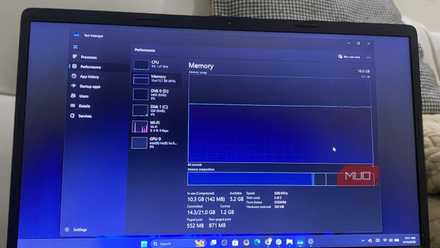
My computer felt slow for months until I realized my RAM was never running at full speed
A simple BIOS setting unlocked the full speed my RAM promised.
How slow RAM starves your CPU
Fast processor, slow data delivery

Your CPU is fast, but it can only work with data it actually has on hand. Its internal storage is tiny, so it keeps pulling from RAM. Every time the processor needs something, it sends a request, and the longer that takes, the less useful work gets done.
At the JEDEC default of 4800 MT/s, each of those requests takes longer than it would at your kit’s rated speed of 6000. One slow request barely matters on its own. Thousands per second, though, and the delays stack into something you can feel. Your game stutters during a scene load, the video export you started ten minutes ago still isn’t done, and switching between thirty browser tabs makes the whole system hesitate.
The CPU isn’t working hard in those moments because the data isn’t keeping up. Higher RAM speed closes that gap by moving more data per second and completing each individual request faster. At JEDEC defaults, both are throttled.
Enable XMP and stop leaving performance on the table
One BIOS toggle unlocks your full speed

Enabling XMP takes one change in your BIOS. Restart your PC, press Delete or F2 during boot to enter the BIOS, and look for the XMP toggle. On AMD systems, it may be labeled EXPO, DOCP, or A-XMP depending on your motherboard brand. Different names, same function. Once you’ve enabled your XMP profile and set it to Profile 1, save with F10 and reboot. Your RAM is now running at its rated speed.

Before you do that, make sure your sticks are in the right slots. Open Task Manager, go to the Performance tab, and look at how many slots are in use. If you have two sticks in a four-slot board, they need to be in the right pair of slots to run in dual-channel mode. The motherboard manual tells you which two, and it’s almost always slots 2 and 4 counting from the CPU. Single-channel cuts your memory bandwidth in half, and no XMP profile fixes that.

After enabling XMP, give the system a day or two of normal use. If anything feels unstable, crashes, or fails to boot, most modern motherboards will fall back to JEDEC defaults after a few failed attempts. If yours doesn’t, a CMOS clear does the same thing. You can try the profile again, or run a stability test with a free tool like MemTest86. It’ll confirm whether your kit actually handles the full speed.
Your upgrade is already installed
The CPU you have isn’t struggling. It’s waiting on data that a factory default keeps throttling. A quick BIOS toggle and a slot check close that gap.
Software demands more from memory with every update, and that trend isn’t slowing down. Getting your RAM configuration right today keeps your current hardware relevant longer without an upgrade.
