There’s something cool about running a home lab. Maybe you have a small rack full of servers, whirring away as they do their thing. But not all of us have the space for such hardware-based luxury, and then there’s the cost of electricity, not to mention the heat servers can kick out. Thankfully, you don’t need to fill your home with servers to enjoy yourself. I love my virtual machine-based home lab, and it runs everything from my smart home to photo backups for my family.
There are tons of benefits to choosing the virtualized route rather than the physical one. I’ve already covered a few of them, but there’s a key one that often gets overlooked. I regularly find myself down a rabbit hole of some new self-hosted service. If I were using physical servers, I might need to buy new hardware before I can play around with it. Not so with virtualization. I can spin up a new virtual machine (VM) in seconds, ready to start the fun. That’s how I wound up running some of the VMs that I use today; here’s a rundown of the VMs I couldn’t be without.
I set up Pi-hole on my home network, and the internet feels like a completely different place
The many benefits of hosting your own DNS server and the control it gives you over your network.
Virtualization goes back to the Mac
Dusting off the old workhorse

Every VM needs a hypervisor or, in other words, software that the VM runs on. In my case, an old Mac mini with an Intel 6-core CPU and 32GB of RAM takes care of the hardware. For software, I’m using VirtualBox, a virtualization tool that’s free for personal use.
The beauty of a Mac mini is that it takes up almost no space and uses relatively little power compared to a big PC. It spends its days doing what needs to be done with almost no input from me. The only time I need to interact with it directly is when I want to create a new VM or run software updates. Honestly, it’s easy to forget that it’s there.
Hypervisor taken care of, let’s dive into the VMs that run on it.
Pi-hole for my network’s DNS server
No Raspberry Pi needed
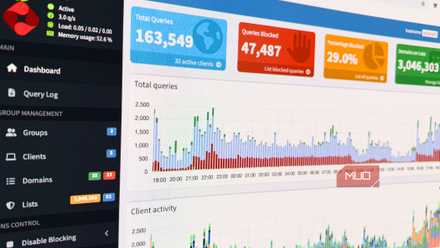
Pi-hole is a handy DNS service that was originally designed to run on a Raspberry Pi, as the name suggests. But it’ll run on almost anything, and it’s been taking care of my home network’s DNS needs for a year or so.
While my internet service provider (ISP) does provide its own DNS servers, they aren’t always the most reliable. And sure, there are third-party alternatives from big internet companies like Google and Cloudflare. But running my own DNS server, inside my own network, allows me to do things those other options don’t. I can see which servers all of the devices on my network are connecting to, for starters, and it gives me a better understanding of which devices are the most chatty, and who they’re chatting with.
Another advantage is more control over local DNS entries, not just those that reach out onto the internet. As an example, I can create a local DNS record for my Pi-hole instance. That allows me to connect to its dashboard via an easy-to-remember hostname instead of an IP address that I can never quite remember. The same applies to all of the other virtual servers on my network as well.
Home Assistant to smarten up my home
Bridging the gap to Apple Home

As a home full of iPhone, Mac, and iPad users, Apple’s Home system runs our smart home. It does a good job of it, too, but it isn’t perfect. Sometimes it needs a helping hand, and that’s where Home Assistant comes into play.
A smart home system in its own right, Home Assistant offers everything from simple control of light switches and smart plugs to advanced home automation. In reality, I use it to give me easy access to accessories that don’t officially support Apple Home and HomeKit.
After some fiddling, I was able to use Home Assistant as the go-between for our Ring cameras and Apple Home. The result is that Ring cameras now show up in the Home app. Thanks to Home Assistant, they even support Apple’s HomeKit Secure Video feature, recording activity straight to iCloud. I wouldn’t presume to call it magic, but it isn’t far from it.
I use a similar setup to feed my Logitech Harmony remote into Apple Home, too. I can now hit a button in the Home app and have my TV turn on, the HDMI switch flick to the Xbox Series X’s input, and even have Xbox turn on. Alternatively, all of the same controls can be found via the Home Assistant app — perfect for when I’ve fallen out with Apple Home because something isn’t responding again.
Immich for photo library backup
You can never keep your family photos too safe

Like a lot of people, iCloud means all of our family’s photos are available at the touch of a button. But iCloud isn’t perfect, and I never want to lose all of our photos because I lost access to my Apple Account. So we use Immich as a safety net.
Immich is another of my VMs, and it has one job. Whenever I’m home, my iPhone automatically connects to my Immich server and uploads all of my photos. And because my wife and I use Apple’s Shared iCloud Photo Library function, all of her photos are uploaded as well.
Immich has a browser-based interface to go with its iPhone app, and it includes many of the features we’ve become accustomed to. There are folders that photos can be sorted into, and it even does facial recognition as well. And because it’s running in a VM on my server, I know exactly where my photos are if I ever need them. Even better, because my Mac mini is backed up to a Time Machine instance on my NAS, so is the Immich library. It’s like a backup inside a backup, and it’s absolutely free.
Minecraft and more
Like father, like son

Following in his father’s footsteps, my teenager has also gotten in on the VM fun. I gave him access to a VM running Ubuntu and left him to his own devices, helping out when asked. The result is a smorgasbord of servers.
That little VM has been home to a Minecraft server, with some of his friends connecting to play remotely. He’s also been fiddling with Terraria as well, and I doubt that will be the last game server he gets up and running.
The beauty of letting him loose on a VM is that he can’t really break anything. And if he does, I can roll the VM back to a known-good state and help him figure out what went wrong. I’d argue that part really is magical.

I Always Have a Virtual Machine Handy for These Key Reasons
It’s worth keeping a few different virtual machines ready for when you need them most.
Just the beginning
This handful of VMs are just the ones that run 24/7, too. There have been plenty more projects since I started my virtual machine odyssey. And there will be plenty more to come.
Looking at my Mac mini’s resource usage, there’s still room for some more VMs. And whether it’s my kid or me, it’s only a matter of time before I add more to the mix.
