Whether you’re using the old-school Nvidia Control Panel or Team Green’s more recent app, it’s easy to make settings mistakes, even on a high-end graphics card like the RTX 5070. In an age where games will destroy your 8GB GPU, it’s important to know the correct settings for your level of hardware.
With that said, even if you own a decent Team Green GPU, there are always graphical presets you can cut back on without feeling any significant visual downgrades for potentially big performance benefits.
As someone who has been gaming on Nvidia GPUs for over 15 years, here are five big graphical setting errors I’d avoid to maximize your current card’s performance without overly hobbling the visuals in your favorite Steam titles.
Cloud gaming got so good so fast that I genuinely regret buying my gaming laptop
Nvidia GeForce Now Ultimate has totally changed my mind on game streaming.
Enabling V-Sync
Turning this on can cause serious lag

I’ll admit it, I was using V-Sync wrong for too long. Hold your judgment, I beg of you. Part of the reason I was making this setting error, is because I own a couple of Nvidia G-Sync displays, and many moons ago — when I stupidly treated Reddit forums as gospel — I told myself I needed V-Sync to be switched on to get the most out of Team Green’s take on VRR. That simply wasn’t the case.
On lower refresh rate 60Hz screens, there’s real value to turning on V-Sync in the Nvidia App/Control Panel. Yet if you’re lucky enough to own a 120/240Hz gaming monitor, V-Sync is the absolute enemy. While it prevents screen tearing by matching your monitor’s refresh rate to a game’s frame rate, it also heaps on a whole lot of lag.
Increased latency is a killer in competitive games. Do yourself a favor: enable V-Sync Fast instead, then cap the Nvidia Control Panel’s Max Frame Rate setting to a couple of FPS below whatever your current display is capable of. This will ensure minimal input lag without courting screen tears.
Don’t ignore RTX HDR
Nvidia’s AI solution often works better than in-game HDR modes
I’ve said this before: Windows 11 HDR looks bad for browsing and gaming. While the Windows HDR Calibration Tool can help with your former desktop-navigating woes, many modern Steam titles refuse to play nicely with High Dynamic Range gaming content.
That’s where Nvidia’s RTX HDR enters the equation. Using AI to transfer SDR content to HDR, I always have it enabled — even if in-game settings support HDR modes. When it comes to High Dynamic Range, modern PC titles still can’t be trusted compared to the PS5 Pro and Xbox Series X. By enabling RTX HDR, you ensure more convincing black levels in PC games alongside colors that appear more vividly. At little extra performance cost, RTX HDR is an essential Nvidia settings feature.
Low Latency Mode can cause issues
In certain instances, LLM can make games stutter

On a shiny sheet of A4, the Nvidia App/Control Panel’s Low Latency Mode sounds great. By reducing the number of queued frames your GPU and processor have to serve up, it should theoretically reduce input lag. And in many cases, LLM works fantastically.
It’s far from flawless, though. LLM can cause stuttering in your favorite games when your GPU becomes maxed out at around 95–100% max load. This can be especially prevalent in CPU-intensive games, where your processor will become the biggest bottleneck to smooth in-game performance before your graphics card.
If you are experiencing stuttering issues with LLM set to its Ultra preset, reduce it to Normal. If gameplay still doesn’t feel smooth, turn off Nvidia’s latency-reducing mode entirely. Input lag might go up, but hopefully your visual experience will remain smooth.
Gaming with the Nvidia overlay open
A handy background feature, but one that can disrupt performance
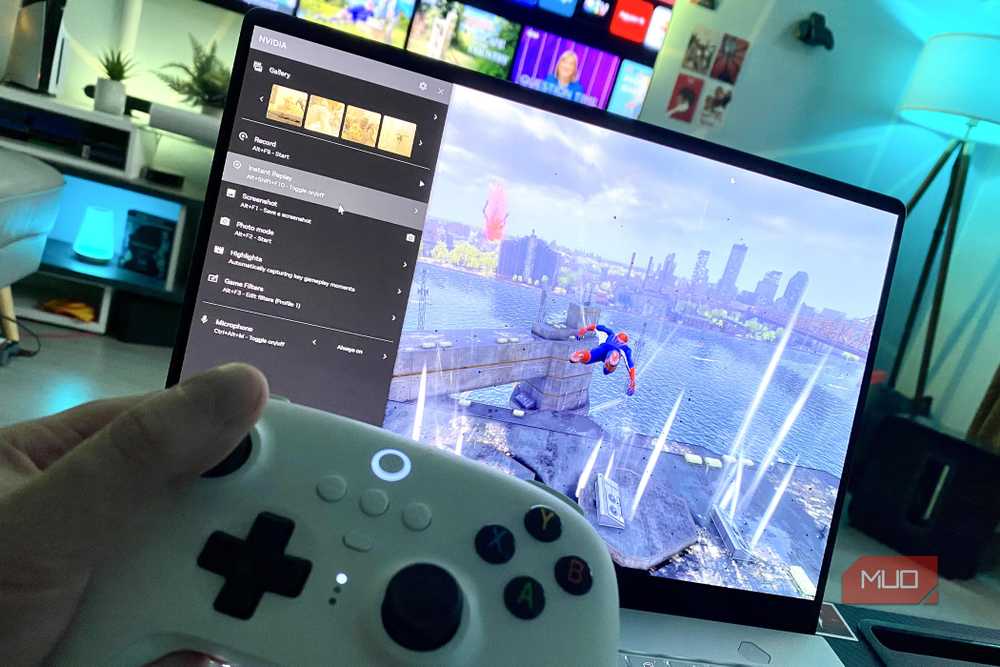
For the record, I adore the Nvidia App/GeForce Experience overlay. What was once called ShadowPlay, with a quick press of Ctrl+Z, you can instantly access handy screenshot-snapping features or on-screen stats that let you measure FPS, GPU usage, and overall input latency. It’s a brilliant front-end for services that I use on a daily basis.
BUT … it can come with a performance cost if you’re running it in the background while playing your favorite PC games. Though the FPS impact isn’t normally that big, if you’re playing a particularly CPU-bound title like Microsoft Flight Simulator 2024, having Nvidia’s overlay running in the background can increase input latency.
For those times you don’t need to obsess over frame rates or can forgo taking easy screenshots in demanding games, on mid-range PCs, it’s probably wise to turn off Team Green’s overlay when you’re in the thick of the action.
Selecting the wrong power management mode
Don’t accidentally hobble your PC
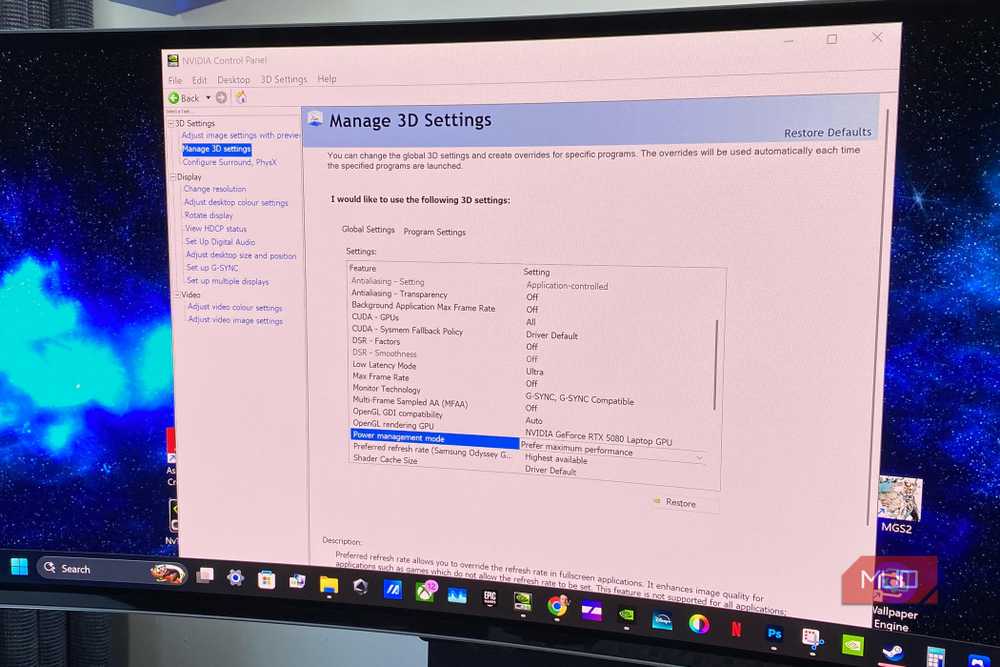
If you’re lucky to own a high-end, 50-series Team Green system, you should definitely be conscious of what Power Management Mode you’re using in the Nvidia Control Panel. Find yourself using the default “Normal” setting? Then you’re gaming wrong on your top-tier laptop or PC. Though the latest frame generation settings can help you claw back performance in impressive style.
Providing you have the hardware grunt to support it, you should always enable “Prefer maximum performance” when it comes to Nvidia power mode settings. For those of you who love graphically intensive first-person shooters that demand high frame rates if you’re going to succeed, this mode ensures your GPU stays at high clock speeds. Default to the normal setting, and your pricey graphics card may be downclocked, potentially resulting in the difference between pulling off a headshot in Call of Duty: Black Ops 7 and not.
With the wrong Nvidia settings, your GPU may suffer
By and large, the latest version of the Nvidia App is very good at analyzing your system’s capabilities, then adjusting settings accordingly to maximize performance. As good as Team Green’s software is though, it’s not infallible. If you are experiencing unexpected performance hiccups on your Nvidia rig or laptop, I strongly suggest you tweak the above settings to get the most out of your system.

- Brand
-
Gigabyte
- GPU Speed
-
2.73 GHz
- Memory
-
16GB
- Power
-
360W TDP
- CUDA Cores
-
10,752
The Gigabyte GeForce RTX 5080 delivers next-generation performance for gaming and creative workloads, featuring advanced ray tracing, AI-enhanced graphics, and high-speed GDDR7 memory. Its robust cooling system ensures stable operation under load, while factory overclocking and modern connectivity make it ideal for high-resolution gaming, streaming, and demanding GPU-intensive tasks.
