USB-C is fast. Well, that’s not entirely true. USB-C is an oval-shaped connector that we associate with much faster transfer speeds and charging for our devices. But that’s all USB-C is: a standard that defines the connector shape we all love.
It replaced a generation of slower, uglier ports, and we all collectively decided it meant things got better. Except sometimes it didn’t. Sometimes your USB-C port is running at USB 2.0 speeds, and it never really lets you know unless you spend time figuring out the problem.

How USB-C reversibility actually works
Reversible doesn’t mean identical.
Why your USB-C port isn’t as fast as it should be
Capped, but you don’t know why
|
Standard |
Defines |
Does NOT define |
|---|---|---|
|
USB-C |
Connector shape and pin layout |
Transfer speed, data protocol, or power delivery level |
|
USB 3.2 |
Transfer speed (up to 20Gbps) |
Connector shape — works with USB-A, USB-C, or internal |
|
USB 4 |
Transfer speed (up to 40Gbps) and protocol |
Connector shape — but requires USB-C |
|
Thunderbolt 4 |
Speed, protocol, and minimum port requirements |
Connector shape — uses USB-C but is a separate standard |
|
USB Power Delivery |
Charging wattage negotiation |
Transfer speed or connector shape |
USB-C is a connector shape, not a speed standard. What actually determines the speed is what’s wired behind that port — and manufacturers make that decision based on cost, design, and what they think you’ll use each port for.
Sometimes, manufacturers will cheap out on the secondary ports on a device, which caps your data speeds at around 30–40MB/s, which is fine for a mouse or keyboard, but absolutely dreadful for an SSD or similar.
In fairness, it’s not always laziness. Some ports are physically wired only for power or display and genuinely can’t carry high-speed data, regardless of what you plug in. But the result is the same: you’re not getting the transfer speeds you assumed you were.
Check your USB ports on Windows, macOS, & Linux
It differs for every operating system

The good news is that you can check the capabilities of each of the USB ports on your device to figure out what it’s fully capable of. The easiest way for most folks is undoubtedly to run an internet search for “[device name] usb port specs” or something along those lines.
It should quickly reveal the manufacturer specs for your device and its USB ports, which should help you isolate the slower port. But there are other ways you can do this, such as using tools already available in your operating system or free third-party apps.
How to check your USB ports on Windows

Your first port of call on Windows should be the Device Manager, which lists all of the various controllers active on your device.
- Press Win + X and select Device Manager.
- Once it opens, scroll down to Universal Serial Bus controllers and unfurl the dropdown.
- From here, it’ll show you the capabilities of each port on your device.
However, Device Manager can be a little confusing when it comes to checking USB ports because it doesn’t have an easy way to differentiate between them. If you double-click the USB device, it’ll reveal the location of the port… but that doesn’t actually make it any easier, because “PCI bus 47, device 0, function 3” (as an example) is as clear as mustard.
Instead, look for anything specifically labeled “USB 2.0”, then you can work from there. You’re likely going to end up doing a blunt action check anyway — plugging in and checking speeds — but this serves as a good way to know that at least one port actually is limited to slower speeds.
How to check your USB ports on macOS
It’s a similar process on macOS, where you can easily check your macOS settings to see each USB port.
- Click the Apple icon and select About this Mac > More Info > General > System Report.
- Now, select the USB section, which will reveal the labeling for each port, making it clear which is which.
Now, I actually wondered when the last time Apple shipped a device with a USB 2.0 port, because as someone who doesn’t ardently follow Apple hardware, I figured it must have dropped the older standard by now.
But no — I was completely wrong. The 2026 MacBook Neo ships with two USB-C ports: one USB 3.0 and one USB 2.0. Apparently, macOS alerts you when you plug a faster device into the slower port; given the ports aren’t labeled, this is a welcome notification.
How to check your USB ports on Linux
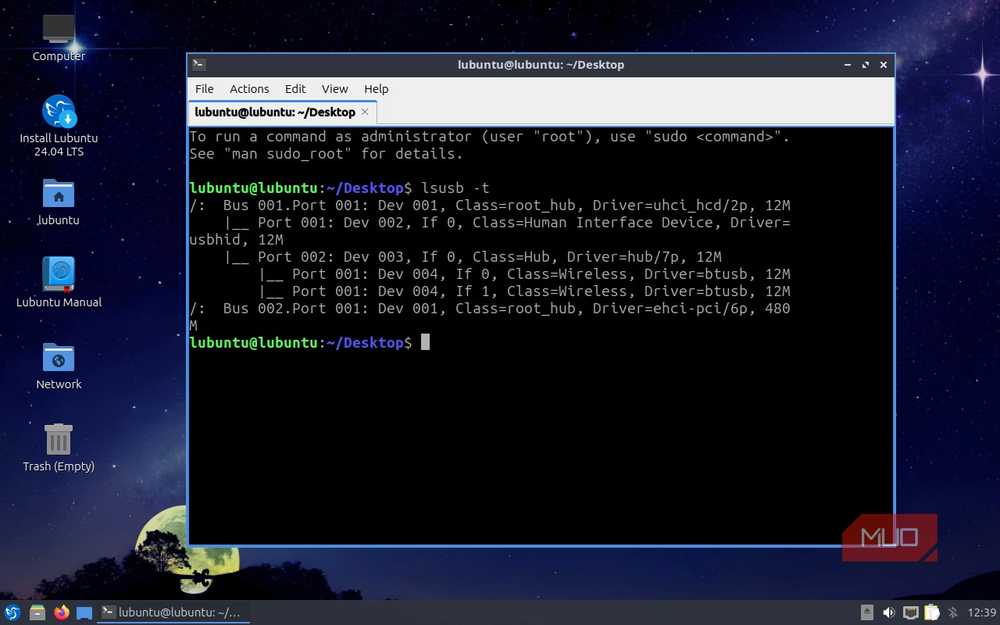
Checking your USB ports in Linux is relatively simple, using the lsusb -t command in the terminal. This creates a list of your USB controllers and connected devices, listing the speeds in Mbps.
Ideally, you’re looking at 480M (USB 2.0) versus 5000M or higher (USB 3.x).
-
Open a terminal and input
lsusb -t - Check through the list to see the USB controllers
For more details on a specific device, run lsusb on its own first to get the bus and device IDs, then run lsusb -v -s [bus]:[device] and look for the bcdUSB value — 2.00 means USB 2.0, 3.20 means USB 3.2, etc.
Now, you’ll have to forgive my screenshot above, which doesn’t completely convey the information — I had to fire up a quick Linux virtual machine to grab the shot, and that was using virtualized controllers. But the command works, and is exactly what you need.

- Brand
-
Baseus
- Connection
-
USB-C
- Ports
-
1x RJ45, 3x USB-A, 2x USB-C, 2x HDMI, 1x SD Card, 1x microSD Card
- USB-C Power Delivery
-
PD100
- Maximum display resolution
-
4K@120
- Weight
-
134g
The Baseus Metal Gleam Series II 10-in-1 USB Hub adds ten ports to your laptop via a single USB-C port. This device will turn your PC into a connectivity powerhouse, giving you two 4K displays, gigabit ethernet, 100W power delivery, and 10Gbps USB transfer speeds.
What do if you find a USB 2.0 port?
Panic. Go wild. Burn it all down.
But if that’s not the order of the day, you have a couple of options depending on your device. For example, if you have a device with one USB 3.0 and one USB 2.0 port, get a USB 3.0 hub and plug it into your faster port.
You’ll have to be reasonable with what you plug in so as not to overwhelm the controller, but you’ll have access to many more USB 3.0 ports, which is exactly what you want.
Also consider that a USB 2.0 port really isn’t the end of the world, especially once you figure out which port it is. USB 2.0 is perfectly fine for keyboards, mice, game pads, and more. And don’t forget that USB 2.0 also supports Power Delivery, so you can still use it for charging if applicable.
All in all, a mislabeled USB 2.0 port can be frustrating, but ultimately, it’s still a super useful port on your device.

Your next “HDMI” cable might actually be a USB-C
Didn’t you hear? HDMI is dead.
