Let me level with you: there was a time when image ghosting used to haunt many of my waking thoughts. Forget Casper, if you want to be spooked as a PC gamer, ghosting artifacts will truly shiver your spine. While this visual defect is less common than it used to be, ghosting on modern displays continues to be an issue.
It’s also a problem you might be unwittingly making worse on your monitor because you’ve enabled the wrong setting on your panel. A few years ago, when I used to own IPS monitors, ghosting used to regularly have a negative impact while playing my favorite PC games. Now? Through a combination of hardware changes and, crucially, knowing what monitor settings to turn on and at what level they should be set to, I’ve mostly exercised those pesky screen defects.
What is screen ghosting?
Breaking down this irritating screen issue

So what is monitor ghosting and how do you fix it? In broad terms, ghosting happens because on-screen pixels can’t update fast enough. This then leads to a visual anomaly, normally seen as a faint trail behind fast moving objects. Hence, the term “ghosting”.
- Resolution
-
5120×1440
- Screen Size
-
49-inch
- Brand
-
Samsung
- Connectivity
-
1x HDMI 2.1, 1x DisplayPort 1.4, 2x USB-A 3.0, 1x Headphone Jack
- Max. Refresh Rate
-
240Hz
- Response Time
-
0.03ms
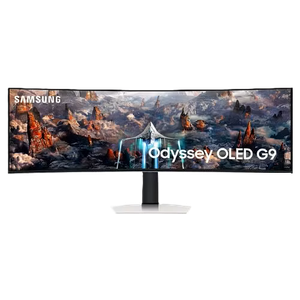
The Samsung Odyssey OLED G9 is a 49-inch super ultrawide gaming monitor with a 240Hz refresh rate.
The issue of ghosting is more prevalent in older, 60Hz monitors. Generally speaking, slower refresh rates lead to longer pixel response times, creating more easily spotted blur during fast-paced video games.
Thankfully, faster 120Hz (and above) modern monitors have seen image ghosting become less of a problem. And you can reduce these potential on-screen motion problems even further by buying a particular type of display tech. But I’ll get to that.
The best software to measure screen defects
Measure response times and ghosting problems with this free tool

Now that you know what display ghosting is, let’s talk about the best way you can detect it on your monitor. The best method for spotting ghosting issues is by using Blur Busters UFO Motion Test. This web-based tool helps to clearly identify and measure motion issues on your display, letting you get a grasp on what potential ghosting or refresh rate issues your panel might be struck with.
What should you be looking out for when you run this test? Running at an absurdly rapid 960 pixels per second when deploying Blur Busters’ testing tool, look out for the legs of the titular alien-ferrying craft.
A properly calibrated, high-refresh rate monitor will make the legs of the UFO look clear and precise, whereas a slower display with potentially misjudged screen settings will make those spindly legs appear as a headache-inducing blur.
How to reduce display ghosting
Hardware changes and settings tweaks can help

The big tip I’m about to give you when it comes to reducing screen ghosting will absolutely depend on your monitor. Not all PC displays are created equal. As such, the particular wording I’m about to use regarding a setting that can help banish ghosting is going to change depending on the phrasing your screen’s manufacturer prefers.
That’s a long-winded way of saying you should be on the lookout on your monitor’s OSD for “Overdrive” mode. Occasionally known as “response time acceleration”, this feature can help to reduce ghosting by applying more voltage to on-screen pixels, in turn allowing them to update more quickly.

I’ll never buy another ultrawide without this feature — and it has nothing to do with the display
I thought I’d fall in love with an ultrawide for the extra screen space, but it was the integrated KVM switch and Thunderbolt dock that won me over.
Set to the right level, overdrive can be beneficial in helping to usher out those pesky visual ghouls from your monitor for good. Overdo this technique, though, and you can induce an equally unwanted effect: inverse ghosting.
When overdrive is set to maximum levels, fast-moving objects can suddenly show a bright glow moving around them (often known as a haloing effect). To strike the ideal balance of overdrive features, you should set it to medium, and not the highest, halo-courting preset.
The display tech you own affects ghosting
Certain types of monitor are more vulnerable to this screen defect

Sometimes, you can pick up the wrong display depending on your day-to-day needs. I bought the wrong monitor because I didn’t understand this one display setting, so I totally get it. In terms of preventing image ghosting, OLEDs are the way to go. Thanks to their almost instantaneous pixel response times, OLED displays offer the best motion clarity you can currently buy.
Conversely, inferior IPS and VA screens are slower in terms of how they handle pixels. Thus, these types of displays need to lean more heavily on amped-up overdrive features. There’s also the fact that these panels offer narrower viewing angles, worse screen uniformity, and subpar black levels compared to OLED tech.
If you want to reduce the chances of your favorite PC games being dragged down by image ghosting, I can’t recommend an OLED display highly enough. Also, you should seriously consider buying a curved monitor.
Display ghosting can be combated with tweaks
Motion clarity matters a lot when it comes to gaming. If you want to minimize the effects of screen ghosting, you should prioritize picking up a high refresh rate display with Variable Refresh Rate (VRR) features. Of course, if you’re stuck with an older monitor and can’t afford a new screen, make sure to use Blur Busters’ UFO test to tweak your gaming panel’s overdrive settings.
